
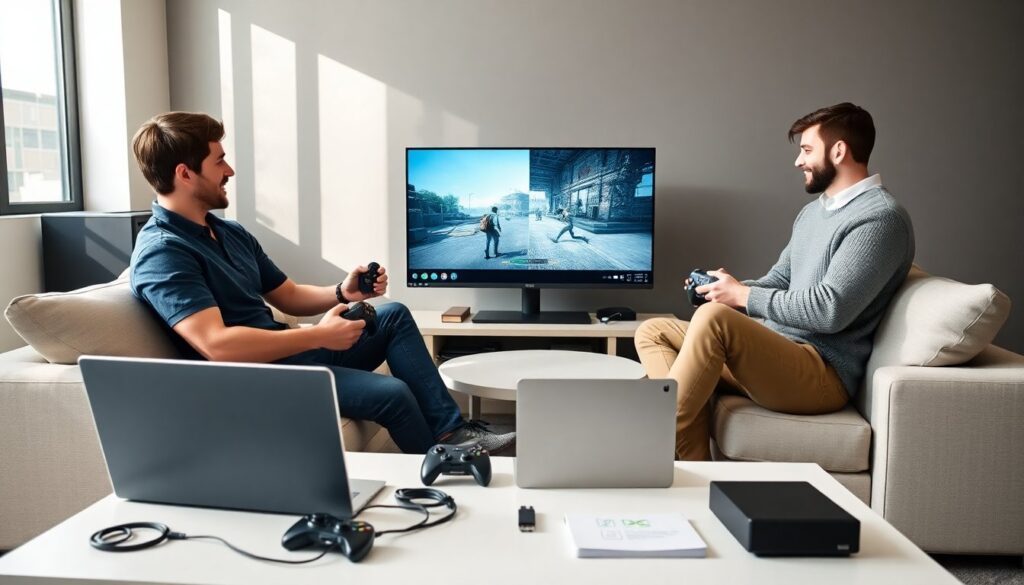
pc split screen games let players share one PC and one screen. This guide lists strong options and clear setup steps. It helps players pick games by hardware, controllers, and playstyle. It gives step‑by‑step setup and basic fixes. Readers get quick, usable advice for local play with friends and family.
Key Takeaways
- PC split screen games allow multiple players to share one PC and screen, making local co-op and competitive play accessible and fun.
- Choosing the right pc split screen game depends on matching game demands with your hardware capabilities and selecting supported controllers like Xbox or PlayStation devices.
- Before playing, update your operating system and drivers, connect controllers properly, and test game settings to ensure smooth split-screen performance.
- Popular split-screen genres include action, racing, shooters, indie games, and party titles, each offering unique co-op or competitive experiences suitable for different playstyles.
- Troubleshooting common issues like controller detection, low frame rates, or missing split view involves checking connections, adjusting graphics, and verifying game modes.
- Reading store page details and user reviews helps confirm local split-screen support, while backing up saves and labeling controllers improves multiplayer sessions.
How To Choose The Right Split‑Screen Game: Hardware, Controllers, And Playstyles
How To Choose The Right Split‑Screen Game: Hardware, Controllers, And Playstyles
Players pick a split‑screen game by matching game demands to their hardware. They check CPU, GPU, and RAM before buying. They choose a game that runs at stable frame rates on their PC. They test single‑player performance first. They lower resolution to improve performance when needed.
Players select controllers by checking native support. They use Xbox or PlayStation controllers because most PC games support them. They plug controllers before launching a game. They configure buttons in the game menu when a layout feels off.
Players match playstyle to game type. They pick competitive games when they want fast matches. They pick cooperative games when they want long sessions. They prefer casual titles when younger players join. They adjust difficulty to keep games fun for everyone.
Players confirm local split‑screen modes before purchase. They read the store page and patch notes. They look for phrases like “local co‑op” or “split‑screen” in the description. They avoid games that only have online co‑op when they want couch play.
Players budget for extra controllers and a controller hub if needed. They choose wired controllers for low latency when precise input matters. They keep a keyboard and mouse handy for games that mix input types.
Players update drivers and the OS before first play. They close heavy background apps to free CPU and RAM. They test a short match to confirm smooth local play.
Top PC Split‑Screen Games By Genre (Action, Racing, Shooters, And Indie Gems)
Top PC Split‑Screen Games By Genre (Action, Racing, Shooters, And Indie Gems)
Action: Gritty action titles give clear split‑screen options. They favor games with simple controls and local co‑op modes. A well‑known action choice offers survival co‑op and concise missions. Players like it for tense, shared play.
Racing: Racing games reward split‑screen with close local matches. They provide split view and track customization. A top 2026 racer supports four local players and custom splits. Players enjoy lap battles and shared local leaderboards.
Shooters: Shooters vary in split‑screen support. They choose arena shooters with local modes for fast matches. They pick tactical shooters with split‑screen only when the PC meets high hardware demands. Many shooters let players set friendly fire and HUD options for private matches.
Indie Gems: Indie developers often add split‑screen as a core feature. They create cozy puzzle co‑op and platformers that run well on modest PCs. Players like indie titles for short sessions and creative mechanics. Indies usually support two local players and local save slots.
Party Games: Party titles create short competitive rounds for groups. They support a mix of controllers and keyboard input. Players enjoy party games for casual nights and mixed‑skill groups.
Crossgen Support: Some older classics keep split‑screen modes after patches. Players check community mods for added local play options. Mods can add splits, fix UI issues, or improve performance. Players back up saves before installing mods.
Players search stores with filters like “local co‑op” and “split‑screen”. They read recent user reviews to confirm the mode still works. They watch short gameplay clips to verify the split view and HUD clarity.
Step‑By‑Step Setup And Troubleshooting For Split‑Screen On PC
Step‑By‑Step Setup And Troubleshooting For Split‑Screen On PC
Step 1, Prepare hardware. Players connect controllers and plug them into USB ports. They attach a second monitor only when they want extended desktop. They keep the main display set to the native resolution.
Step 2, Update software. Players update Windows and GPU drivers before launching a split‑screen game. They install the latest game patches. They restart the PC to finalize driver updates.
Step 3, Configure game settings. Players open the game and choose “local co‑op” or “split‑screen” mode. They assign controllers in the input menu. They set graphics to medium or custom to keep frame rates steady.
Step 4, Test input and HUD. Players run a short match to confirm controller mapping and HUD readability. They lower UI scale if text looks small. They swap players between controllers to check detection.
Troubleshoot, Controller not detected. Players reconnect the controller and try a different USB port. They test the controller in Windows Game Controllers settings. They download the controller firmware if a manufacturer provides one.
Troubleshoot, Low frame rate. Players lower resolution or turn off demanding effects. They close background apps and free up CPU and RAM. They set the game to run in fullscreen rather than borderless window.
Troubleshoot, Split view missing. Players check the game menu for a “split‑screen” toggle. They verify the game version supports local play. They consult the game’s support page or community forums if needed.
Troubleshoot, Input mix issues. Players assign one controller per player and avoid mixing keyboard and controllers when possible. They disable conflicting overlays from launchers and recording apps.
Final tips: Players keep backups of save files before using mods. They label controllers to avoid confusion in party settings. They pause a match to adjust settings rather than quitting mid‑game.
Players who follow these steps get consistent local play. They enjoy pc split screen games with fewer interruptions. They test and tweak settings for the best shared experience.
More Stories
PC Brigade’s GeekGadget Reviewed (2026): A Practical Mini‑PC For Home DIYers
Free Crossplay Games For PS5 And PC: Best Titles To Play Together In 2026
The Best SpongeBob PC Games: Top Picks, Where To Play, And Tips For Fans (2026)