
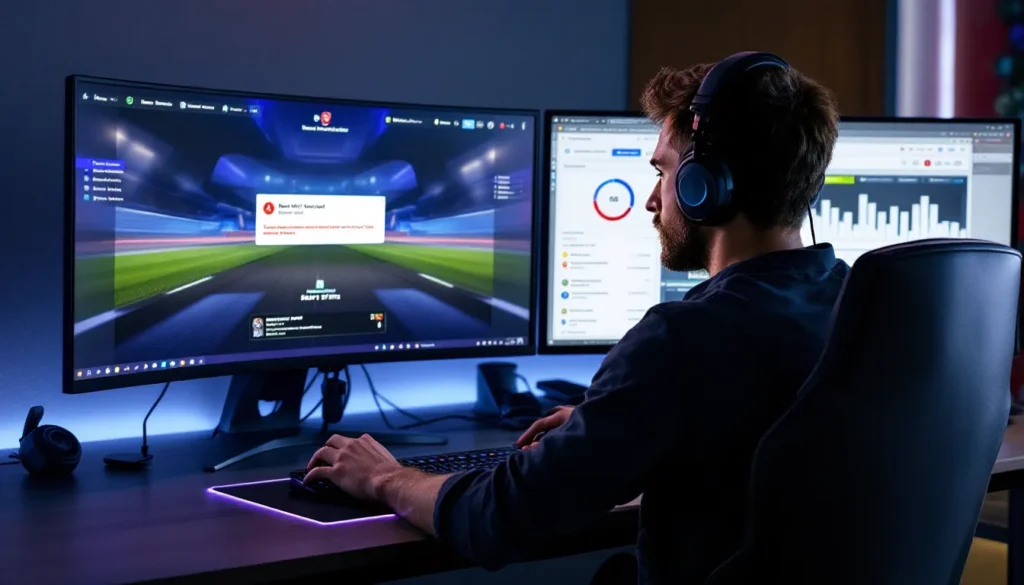
You’re in the middle of a ranked session, momentum building, and then, bam. “Call Limit Reached.” The game boots you back to the menu, and you’re left staring at an error message that makes zero sense. If you’ve hit this wall in Rocket League, you’re not alone. This error has plagued players across all platforms since the game’s transition to free-to-play, and it’s one of the most frustrating roadblocks you can encounter.
The good news? The “Call Limit Reached” error is usually temporary and fixable. This guide breaks down exactly what triggers it, why Psyonix implemented it, and, most importantly, how to get back in the game fast. Whether you’re on PC, PlayStation, Xbox, or Switch, we’ve got platform-specific fixes and prevention tips to keep this error from killing your session again.
Key Takeaways
- The ‘Call Limit Reached’ error in Rocket League is a temporary rate-limiting mechanism triggered by making too many server requests in a short time, not a ban or account suspension.
- Most players resolve the ‘Call Limit Reached’ error by simply waiting 5-15 minutes and restarting the game completely, without needing additional troubleshooting.
- Common triggers include rapid menu navigation, unstable internet connections causing automatic retries, and account actions like frequent trading or region switching.
- Platform-specific fixes vary—PC users should disable mods like BakkesMod and check firewall settings, while Nintendo Switch users should prioritize wired connections for stability.
- Preventing the error requires avoiding rapid-fire menu actions, maintaining a stable internet connection, and keeping your game and platform updated to the latest version.
What Does “Call Limit Reached” Mean in Rocket League?
The “Call Limit Reached” error is Rocket League’s way of telling you that you’ve made too many requests to Psyonix’s servers in a short period. Think of it as an anti-spam mechanism, like when a website locks you out after too many failed login attempts.
In Rocket League’s case, “calls” refer to any action that communicates with the game’s backend servers. This includes:
- Searching for matches
- Opening loot boxes or Blueprint menus
- Checking inventory items
- Loading the Item Shop or Garage
- Joining or leaving parties
- Trading items
When you perform these actions too rapidly, whether intentionally or accidentally, the game’s rate limiter kicks in and temporarily blocks further requests. The system doesn’t distinguish between malicious spam and legitimate rapid-fire button presses. If you exceed the threshold, you get locked out.
This isn’t a ban or account suspension. It’s a temporary cooldown designed to protect server stability and prevent abuse. Most players encounter it after menu navigation issues, network hiccups causing repeated connection attempts, or simply mashing buttons during server lag.
Common Causes Behind the Call Limit Reached Error
Understanding why this error pops up helps you avoid it and troubleshoot faster. Here are the primary triggers.
Server-Side Issues and Maintenance
Psyonix runs scheduled and emergency maintenance that can make the game’s backend unstable. During these windows, even normal actions might fail and auto-retry in the background, racking up calls without you realizing it.
If the Rocket League servers are experiencing high load, say, during a new season launch or major update, the rate limiter becomes more sensitive. Your requests might time out and retry automatically, pushing you over the limit.
Rate Limiting and API Restrictions
Rocket League uses API rate limits to prevent server overload and deter botting or account manipulation. These limits exist for specific endpoints, like inventory queries or trade offers.
If you’re refreshing your inventory repeatedly, spamming the Item Shop, or cycling through customization menus quickly, you’ll hit the threshold. The exact number of allowed requests isn’t publicly documented, but anecdotal reports suggest it’s somewhere around 10-15 rapid actions within 30 seconds.
Third-party tools that interact with Rocket League (like BakkesMod on PC) can also trigger rate limits if they’re making backend calls, though most reputable mods are designed to stay under the radar.
Network Connection Problems
An unstable or high-latency connection can cause failed requests that the client retries automatically. If your ping is spiking or you’re experiencing packet loss, a single inventory load might fail and retry five times in quick succession.
This is especially common on Wi-Fi connections with interference, or if multiple devices are saturating your bandwidth. The game interprets these retries as multiple calls, even though you only clicked once.
Account-Related Triggers
Certain account actions carry higher risk for rate limiting:
- Frequent trading: Opening and closing trade windows rapidly, especially if trades fail due to server sync issues.
- Region switching: Changing server regions repeatedly to find matches faster.
- Party hopping: Joining and leaving parties or tournaments in quick succession.
- New account behavior: Fresh accounts sometimes hit limits faster, likely as an anti-smurf or anti-bot measure.
If your account has been flagged for unusual activity in the past, like chargebacks or trading violations, the rate limiter might be more aggressive.
How to Fix the Call Limit Reached Error: Step-by-Step Solutions
Let’s get you back in the game. Try these solutions in order, most players won’t need to go past the first few steps.
Wait and Retry After a Cooldown Period
The simplest fix: do nothing for 5-15 minutes. The rate limiter resets automatically after a short cooldown. Close Rocket League completely (don’t just sit at the menu) and take a break.
Most players report the error clears within 10 minutes. If you jump back in immediately and start mashing buttons again, you’ll just re-trigger it.
Check Rocket League Server Status
Before troubleshooting your setup, confirm the servers are actually up. Check Psyonix’s official status page or third-party trackers. Many competitive players follow updates on platforms like Dot Esports for real-time server outage reports.
If servers are down or degraded, the error will persist no matter what you do locally. In that case, your only option is to wait for Psyonix to resolve the issue.
Restart Your Game and Platform
A full restart clears your client’s cached requests and connection state.
- Close Rocket League completely. On PC, use Task Manager to ensure no background processes are running.
- Restart your console or PC. This flushes network settings and clears memory.
- Launch Rocket League again and test with a simple action like loading your Garage.
This fixes the error about 60% of the time, especially if it was triggered by a temporary network glitch.
Verify Your Internet Connection
Run a quick connection test:
- Ping test: Open Command Prompt (Windows) or Terminal (Mac/Linux) and run
ping 8.8.8.8 -n 10. Look for packet loss or latency spikes above 100ms. - Speed test: Use speedtest.net. Rocket League needs at least 1 Mbps down/up, but unstable connections cause more issues than slow ones.
- Switch to wired: If you’re on Wi-Fi, connect via Ethernet. This eliminates interference and stabilizes your connection.
If your connection is unstable, reset your router by unplugging it for 30 seconds, then plugging it back in.
Clear Cache and Reset Network Settings
Stale cache files or corrupted network configs can cause repeated failed requests.
On PC (Steam/Epic):
- Close Rocket League.
- Navigate to
%userprofile%/Documents/My Games/Rocket League/TAGame/Cache/and delete all files. - Verify game files through Steam or Epic Games Launcher.
- Reset network settings: Open Command Prompt as Administrator and run:
netsh winsock reset

netsh int ip reset

ipconfig /flushdns
- Restart your PC.
On Console:
Most consoles don’t allow direct cache clearing, but you can reset network settings:
- PlayStation: Settings > Network > Test Internet Connection.
- Xbox: Settings > General > Network Settings > Test network connection.
- Switch: System Settings > Internet > Test Connection.
After testing, restart the console.
Contact Psyonix Support
If the error persists for over an hour and servers are confirmed online, submit a ticket at support.rocketleague.com.
Include:
- Your platform (PC, PS5, Xbox Series X, etc.)
- Epic Games account email
- Exact error message and when it started
- Any recent changes (new mods, network config, account activity)
Response times vary, but Psyonix usually replies within 48 hours for account-related issues.
Platform-Specific Fixes for Call Limit Reached
Each platform has quirks that can worsen or resolve the error. Here’s what works best for each.
Fixing the Error on PC (Steam and Epic Games)
PC players have the most control over their setup, which means more troubleshooting options.
BakkesMod users: Temporarily disable the mod to rule it out. While BakkesMod is generally safe, custom plugins that query inventory or stats can trigger rate limits. Restart the game without BakkesMod running and test.
Firewall/Antivirus: Some aggressive firewall rules block or delay Rocket League’s server calls, causing retries. Add Rocket League and Epic Games Launcher to your firewall exceptions.
VPN/Proxy: If you’re using a VPN, try disabling it. VPNs can cause latency spikes that lead to failed requests. Some VPN IPs are also flagged by Psyonix for suspicious activity.
Steam vs. Epic: If you own the game on both platforms, try launching from the other launcher. Epic Games Store sometimes has different server routing that can bypass regional rate limit issues.
Fixing the Error on PlayStation
PlayStation players often encounter this error after rapid party joins or leaving rest mode while the game is open.
- Rebuild Database: Boot into Safe Mode (hold power button until second beep), select “Rebuild Database.” This clears corrupted cache without deleting saves.
- Test PSN Connection: Settings > Network > Test Internet Connection. If NAT Type is 3 (Strict), your connection might be causing repeated failed requests. Try enabling UPnP in your router settings.
- Clear Event Log: Some players report success after clearing the PS4/PS5 notification and download history, which can become bloated and slow system responses.
Fixing the Error on Xbox
Xbox’s network stack can cache failed connection attempts longer than other platforms.
- Hard Reset: Hold the power button on the console for 10 seconds until it fully powers off. Unplug the power brick for 30 seconds, then reconnect and restart.
- Clear Alternate MAC Address: Settings > General > Network Settings > Advanced Settings > Alternate MAC Address > Clear. This forces the Xbox to request a fresh IP from your router.
- Check Xbox Live Status: xbox.com/status to confirm Xbox Live is operational. Sometimes Xbox Live issues compound with Rocket League server problems.
Fixing the Error on Nintendo Switch
Switch is the most prone to this error due to weaker Wi-Fi performance and less robust network handling.
- Use 5GHz Wi-Fi or Wired: If your router supports it, connect to the 5GHz band for better stability. Better yet, use the official Nintendo LAN Adapter for a wired connection.
- Restart in Airplane Mode: Enable Airplane Mode, wait 10 seconds, disable it, then reconnect to Wi-Fi. This forces a clean reconnect.
- Archive and Redownload: If cache clearing via restart doesn’t work, archive Rocket League (this keeps your save data) and redownload it. This is a last resort but effective for corrupted installs.
Preventing the Call Limit Reached Error in the Future
Once you’ve fixed it, here’s how to keep it from coming back.
Avoid Rapid-Fire Actions and Menu Spamming
This is the #1 preventable cause. Slow down when navigating menus, especially:
- Inventory/Garage: Let items fully load before clicking to the next tab.
- Item Shop: Don’t spam refresh or back out repeatedly if items aren’t loading.
- Matchmaking: If a search fails, wait 5 seconds before re-queuing.
- Trading: Give the trade window 2-3 seconds to sync before backing out or canceling.
If you’re experiencing lag in menus, that’s a sign the server is struggling to respond. Clicking faster won’t help, it’ll just get you rate limited.
Keep Your Game and Platform Updated
Psyonix regularly patches server communication issues. Make sure you’re running the latest version:
- PC: Steam and Epic auto-update by default, but verify you haven’t disabled this.
- Console: Enable automatic updates in system settings.
Outdated clients sometimes use deprecated API endpoints that are more aggressive about rate limiting.
Use a Stable Internet Connection
Consistency beats speed. A stable 10 Mbps connection is better than a flaky 100 Mbps one.
- Wired > Wi-Fi: Ethernet eliminates interference and reduces latency variance.
- QoS Settings: If your router supports Quality of Service, prioritize your gaming device to prevent bandwidth starvation from other devices.
- ISP Issues: If you consistently have high ping or packet loss, contact your ISP. Sometimes a modem swap or line repair fixes chronic instability.
Many pro players tracked on ProSettings recommend wired connections and low-latency routers to minimize connection-related errors.
Understanding Rocket League’s Anti-Spam Protections
Psyonix implemented rate limiting to combat several issues that plagued the game’s earlier years.
Bot accounts and item farming: Before strict rate limits, bot accounts would spam inventory queries and trade offers to exploit the trading economy. Rate limiting makes botting far less efficient.
Server stability: During peak hours or new season launches, millions of players hit the servers simultaneously. Rate limits prevent individual clients from hogging resources and causing degraded performance for everyone.
DDoS mitigation: By throttling excessive requests from single IPs or accounts, Psyonix can better detect and block distributed denial-of-service attacks.
The tradeoff is that legitimate players occasionally get caught in the crossfire. Psyonix has tuned the thresholds over time, but they err on the side of caution to protect server infrastructure. According to competitive gaming coverage on Dexerto, similar rate limiting systems are now standard across major esports titles like Fortnite and Valorant.
Understanding this context helps: the error isn’t targeting you personally. It’s an automated system doing its job, sometimes too aggressively.
When to Expect the Error to Resolve Automatically
In most cases, the “Call Limit Reached” error clears itself without any action on your part.
Typical cooldown duration: 5-15 minutes. The rate limiter uses a sliding window, so if you triggered it at 2:00 PM by making 15 calls in 30 seconds, you’ll be clear by 2:15 PM at the latest.
Server-side resolution: If the error is caused by widespread server instability (not your actions), it usually resolves within 30-60 minutes once Psyonix stabilizes the backend. You can monitor real-time updates from the community on Reddit’s r/RocketLeague or official Psyonix social channels.
Persistent cases: If the error lasts over an hour and servers are confirmed operational, it’s likely tied to your account or network config. At that point, manual troubleshooting (cache clearing, network reset, or contacting support) becomes necessary.
Patience is genuinely the best first response. Restart the game, grab a drink, and come back in 10 minutes. You’ll save time compared to diving into complex troubleshooting for an error that was going to expire anyway.
Conclusion
The “Call Limit Reached” error is annoying, but it’s usually a quick fix. Nine times out of ten, waiting 10 minutes and restarting the game solves it. If you’re still stuck, work through the platform-specific fixes and double-check your network stability.
Prevention is simpler than troubleshooting: slow down in menus, keep your connection stable, and stay updated. Rocket League’s anti-spam protections aren’t going anywhere, they’re necessary to keep servers running smoothly for millions of players. Understanding how they work helps you avoid tripping them in the first place.
Now get back out there and grind those ranks. The error’s gone, and your MMR won’t climb itself.
More Stories
Rocket League Camera Settings: The Ultimate 2026 Guide to Perfect Your View
The Coolest Rocket League Cars: Ultimate Style Guide for 2026
Justin Rocket League: The Rise of a Freestyle Legend and His Impact on Competitive Play