
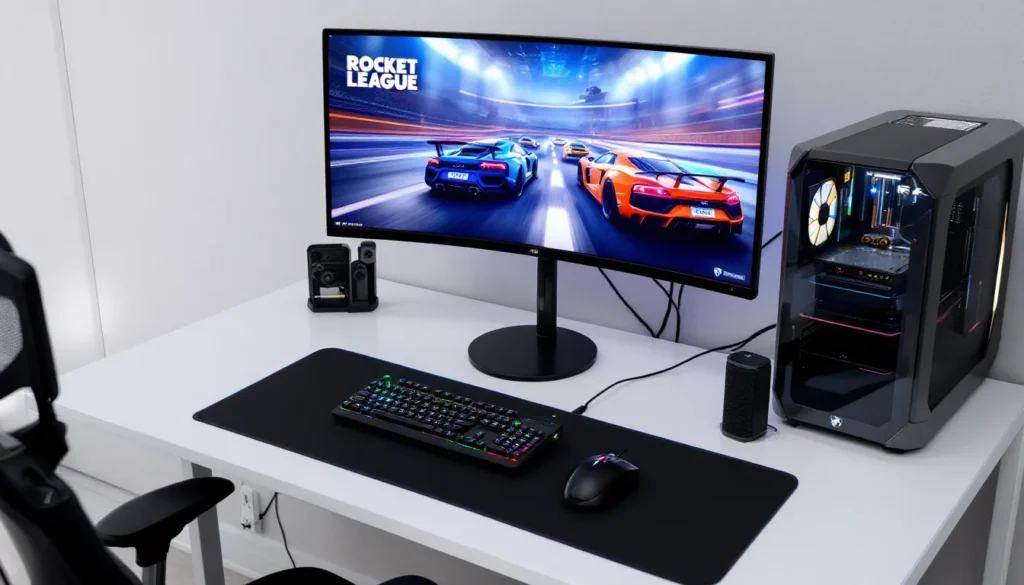
Rocket League remains one of the most addictive competitive games out there, a ridiculous hybrid of soccer and rocket-powered cars that somehow turned into a legitimate esport. But if you’re playing on PC, the platform you choose matters more than you might think. Steam has been home to Rocket League since its 2015 launch, and even though the Epic Games acquisition in 2019, it still offers unique advantages for players who value customization, community features, and legacy support.
This guide covers everything Steam players need to know about Rocket League in 2026: how to download and install the game, what makes the Steam version different from Epic, performance optimization tricks, essential Steam-exclusive features, troubleshooting common problems, and beginner tips to get you from Bronze to Diamond. Whether you’re a returning player dusting off your octane or a complete newcomer wondering what all the fuss is about, you’ll find the exact details you need here.
Key Takeaways
- Legacy Steam accounts offer unrestricted trading and exclusive features like BakkesMod integration, making Rocket League on Steam a distinct advantage over Epic Games for existing players.
- New players cannot download Rocket League on Steam directly; since September 2020, the game is exclusive to Epic Games Store for free-to-play access, though account linking allows progression to sync across platforms.
- Competitive performance demands optimized graphics settings (fullscreen, no V-Sync, performance-focused details) and wired controller connections to eliminate input lag—even 10ms delays can cost matches at higher ranks.
- Master rotation, boost management, and consistent car control before attempting advanced mechanics like flip resets or ceiling shots; fundamentals alone carry players to Diamond rank.
- Rocket League on Steam players should leverage custom training packs, BakkesMod tools, and replay analysis on Ballchasing.com to identify mistakes and accelerate improvement from Bronze to competitive levels.
What Is Rocket League and Why Steam Matters
Rocket League is a vehicular soccer game developed by Psyonix where players control rocket-powered cars to hit a ball into the opponent’s goal. Matches are typically 3v3 or 2v2, running five minutes with overtime if tied. The skill ceiling is absurdly high, mastering aerials, flip resets, wave dashes, and ceiling shots separates casual players from RLCS pros.
Psyonix launched Rocket League on Steam in July 2015, and the platform became the game’s primary PC ecosystem for years. In 2019, Epic Games bought Psyonix, and by September 2020, Rocket League went free-to-play exclusively through the Epic Games Store. Existing Steam players kept full access, but new players couldn’t purchase or download rocket league on steam anymore.
So why does Steam still matter in 2026? First, legacy Steam accounts retain all original features, including unrestricted trading (more on that later). Second, Steam’s infrastructure, Workshop integration, controller configuration tools, overlay features, and screenshot management, gives players more control over their experience. Third, many competitive players prefer Steam’s input handling and performance characteristics, though Epic has closed the gap significantly over the years.
If you already own Rocket League on Steam, you’re sitting on a version with tangible advantages. If you don’t, you’ll need to go through Epic, but understanding the differences helps you make the most of whichever platform you’re on.
How to Get Rocket League on Steam in 2026
Since September 2020, new players cannot download rocket league on steam directly. The game was delisted from the Steam Store when it went free-to-play. If you’re a new player, you must download Rocket League through the Epic Games Store, it’s completely free, no purchase required.
But, if you owned Rocket League on Steam before the September 23, 2020 cutoff, it remains in your library permanently. You can still install, play, and receive all updates through Steam. Your account is grandfathered in with full Steam support.
Downloading and Installing Rocket League
For existing Steam owners, the process is straightforward:
- Open the Steam client and navigate to your Library.
- Find Rocket League in your game list (use the search bar if needed).
- Click Install and select your preferred drive/folder.
- The download size sits around 25GB as of the Season 14 update in early 2026.
- Once installed, click Play to launch.
For new players without a Steam copy, you’ll need Epic Games Launcher:
- Download and install the Epic Games Launcher from epicgames.com.
- Create a free Epic account or log in.
- Search for Rocket League in the Store.
- Click Get to add it to your library (no payment required).
- Install and launch from your Epic library.
You can link your Epic and Steam accounts to share progression, inventory, and competitive ranks across both platforms (covered in the cross-platform section below).
System Requirements for Steam Players
Rocket League isn’t particularly demanding, but hitting 144+ FPS for competitive play requires decent hardware. Here are the official specs as of 2026:
Minimum Requirements:
- OS: Windows 10 64-bit
- Processor: 2.5 GHz Dual-core
- Memory: 4 GB RAM
- Graphics: NVIDIA GeForce 760, AMD Radeon R7 270X, or better
- DirectX: Version 11
- Network: Broadband internet connection
- Storage: 25 GB available space
Recommended for 60 FPS:
- OS: Windows 10/11 64-bit
- Processor: 3.0+ GHz Quad-core
- Memory: 8 GB RAM
- Graphics: NVIDIA GeForce GTX 1060, AMD Radeon RX 580, or better
- DirectX: Version 11
- Network: Broadband internet connection
- Storage: 25 GB available space (SSD recommended)
High Refresh Rate (144+ FPS):
- Processor: Intel i5-10400 / AMD Ryzen 5 3600 or better
- Memory: 16 GB RAM
- Graphics: NVIDIA GeForce RTX 2060, AMD Radeon RX 5700, or better
- Monitor: 144Hz+ display with DisplayPort or HDMI 2.0
Most competitive players disable or minimize graphics settings regardless of hardware to maximize framerate and reduce visual clutter. If you’re serious about ranked play, prioritize FPS over eye candy.
Steam vs Epic Games: Key Differences for Rocket League Players
The Steam and Epic versions of Rocket League share the same servers, receive identical updates, and support full cross-platform play. But under the hood, there are meaningful differences that affect trading, features, and user experience.
Cross-Platform Play and Account Linking
Both Steam rocket league and Epic players connect to the same Psyonix servers, so you’ll match with players from PlayStation, Xbox, Switch, and both PC platforms in every playlist. Cross-platform play is enabled by default and can’t be fully disabled, you can only opt out of cross-platform parties, not matchmaking.
Account linking is crucial if you own the game on multiple platforms or switched from Steam to Epic. Here’s how it works:
- Visit the Rocket League website and log into your primary Epic Games account.
- Navigate to the Connections tab in your account settings.
- Link your Steam, PlayStation Network, Xbox Live, or Nintendo Account.
- Launch Rocket League on any linked platform to merge inventory, ranks, and Rocket Pass progress.
Inventory items and credits do not transfer between platforms due to platform-specific restrictions, but your competitive rank, XP level, and Rocket Pass tier sync across all linked accounts. Tournament rewards, drops, and season rewards apply to your primary platform only.
One important note: once you link accounts, you cannot unlink them for 365 days. Choose your primary platform carefully.
Steam-Exclusive Features and Trading Considerations
This is where Steam players have a real edge. Steam accounts can trade items freely with other Steam players without restrictions beyond the standard trade-hold timers and two-factor authentication requirements. Epic Games accounts, on the other hand, face significant trading limitations introduced after the free-to-play transition.
Specifically:
- Steam-to-Steam trades: Fully unrestricted (items, credits, blueprints).
- Epic-to-Epic trades: Restricted: credits cannot be traded on Epic accounts created after the free-to-play launch.
- Cross-platform trades: Items can be traded between Steam and Epic, but credits remain platform-locked.
If you’re into trading painted Black Markets, Titanium White Octanes, or building a specific preset, having a legacy Steam account is a massive advantage. The trading scene remains most active on Steam for this reason.
Steam also offers Steam Workshop integration, though Psyonix deprecated official Workshop support years ago. But, custom training packs, BakkesMod plugins, and community tools still lean heavily on Steam’s ecosystem. Many pro player settings reference Steam configurations for controller deadzones, input bindings, and camera tweaks.
Epic has its own advantages, primarily easier account recovery and Epic’s cross-game friend system, but for Rocket League specifically, Steam’s maturity and trading freedom give it the edge.
Optimizing Rocket League Performance on Steam
Competitive Rocket League demands consistent high framerates and minimal input lag. Even a 10ms delay or a few dropped frames can cost you goals at higher ranks. Here’s how to squeeze every bit of performance out of Steam rocket league.
Best Graphics Settings for Competitive Play
Most pros run Rocket League on the lowest possible settings to maximize FPS and reduce visual distractions. Here’s the optimal config for competitive play:
Video Settings:
- Display Mode: Fullscreen (not Borderless, adds input lag)
- Resolution: Native monitor resolution
- V-Sync: Off (introduces input lag)
- Anti-Aliasing: Disabled or FXAA Low (minimal performance hit)
- Render Quality: High Quality (this affects car/ball clarity: don’t lower it)
- Render Detail: Performance
- Texture Detail: Performance or High Quality (minimal FPS difference)
- World Detail: Performance
- Particle Detail: Performance
- Effect Intensity: Low
- High Quality Shaders: Disabled
- Ambient Occlusion: Disabled
- Depth of Field: Disabled
- Bloom: Disabled
- Light Shafts: Disabled
- Lens Flares: Disabled
- Dynamic Shadows: Disabled
- Motion Blur: Disabled (always disable this, it’s a competitive disadvantage)
- Weather Effects: Disabled
- Transparent Goalposts: Enabled (helps with visibility during aerials)
Frame Rate Settings:
- Set your FPS cap to match your monitor’s refresh rate, or slightly above. For a 144Hz monitor, cap at 144 or 165 FPS.
- If you have a high-end GPU, you can uncap FPS entirely, but frame time consistency matters more than raw numbers. Check PC gaming performance analysis for detailed benchmarks on various hardware.
Launch Options (Steam):
Right-click Rocket League in Steam > Properties > General > Launch Options. Add:
-high -USEALLAVAILABLECORES -refresh 144 -NoVSync
Replace 144 with your monitor’s actual refresh rate. These flags prioritize CPU resources and disable V-Sync at the engine level.
Controller Configuration and Input Lag Reduction
Rocket League is best played with a controller, keyboard players exist, but they’re rare at high ranks. Steam’s Big Picture Mode controller configuration offers granular control over deadzones, response curves, and bindings.
Optimal Controller Settings (In-Game):
- Steering Deadzone: 0.05–0.10 (lower is better, but don’t go so low you get stick drift)
- Aerial Deadzone: 0.05–0.10
- Dodge Deadzone: 0.50–0.70 (prevents accidental flips)
- Controller Vibration: Disabled (reduces input lag and distraction)
- Ball Camera Mode: Toggle (not Hold)
Steam Input Settings:
By default, Steam applies its own input layer to controllers, which can add latency. To minimize this:
- In Steam, go to Settings > Controller > General Controller Settings.
- Disable Steam Input for controllers you don’t need extra configuration for (e.g., Xbox or PlayStation controllers).
- If using a DualSense or DualShock 4, Steam Input can enable gyro and touchpad features, but adds ~1-4ms latency. Most competitive players disable it.
Wired vs Wireless:
Wired connections eliminate Bluetooth latency (~4-10ms). If you’re using a DualSense, Xbox Elite, or similar controller, plug it in via USB during ranked sessions.
Additional Tweaks:
- Close background apps (Discord hardware acceleration, browser tabs, RGB software).
- Set Rocket League to High Priority in Task Manager.
- Disable Windows Game Mode and Game DVR (Settings > Gaming).
- Use a 1000Hz polling rate wired controller or mouse if you play keyboard.
These optimizations won’t turn you into a Grand Champ overnight, but they ensure your hardware isn’t holding you back.
Essential Steam Features Every Rocket League Player Should Use
Steam’s ecosystem offers tools that Epic simply doesn’t match. If you’re playing rocket league on steam, you should be taking full advantage of these features.
Workshop Maps and Custom Training Packs
While official Steam Workshop support for Rocket League was discontinued, custom training packs remain integral to skill development. You can create, share, and download training packs using in-game codes.
To load a training pack:
- In the main menu, select Training > Custom Training > Browse.
- Enter a training pack code (these are shared via Reddit, YouTube, or Discord).
- Favorite the pack to save it permanently.
Essential Training Packs for 2026:
- Poquito’s Ground Shots: A973-C9B5-2E8F-7D6A (diamond-level shooting accuracy)
- Aerial Training All Levels: FA24-B2B7-2E8E-193B (progressive aerial practice)
- Speed Jump Trials: 8D93-C997-0ACD-8416 (fast aerials and recoveries)
- Wall-to-Air Dribble: 9EBE-E7DB-0B2D-12A4 (wall play mechanics)
For more advanced mechanics, double taps, flip resets, ceiling shots, look for packs by pros like Wayton Pilkin or Kevpert.
BakkesMod is the ultimate third-party tool for Steam Rocket League players. It’s a free mod that adds custom training features, freeplay enhancements, replay analysis, and quality-of-life improvements. Download it from bakkesmod.com, but note: it only works with the Steam version, not Epic.
BakkesMod features include:
- Custom training variance (randomizes ball/car spawn positions)
- In-game rank tracker and MMR display
- Mirror mode for training (practice both sides equally)
- Shot speed and accuracy metrics
It’s not considered cheating, Psyonix officially tolerates it as long as you don’t use it in online matches to gain unfair advantages (e.g., unlimited boost).
Steam Overlay, Screenshots, and Replay Management
Steam Overlay (Shift+Tab by default) lets you access friends, browser, guides, and chat without tabbing out. For Rocket League, the most useful overlay features are:
- FPS counter: Settings > In-Game > In-game FPS counter (top-right is least intrusive)
- Screenshot capture: F12 by default: Steam saves uncompressed PNGs automatically
- Web browser: Look up training pack codes or esports coverage between matches
Replay Management:
Rocket League auto-saves replays locally. On Steam, these are stored in:
C:Users[YourName]DocumentsMy GamesRocket LeagueTAGameDemos
You can also upload replays to Ballchasing.com for detailed analytics, heatmaps, boost usage, positioning stats, and more. Reviewing replays is the fastest way to identify mistakes and improve decision-making.
Steam Cloud saves replays automatically if enabled, so you won’t lose highlight-worthy goals if you reinstall or switch PCs.
Common Issues and Troubleshooting for Steam Players
Even in 2026, Rocket League on Steam isn’t immune to bugs, crashes, and connection issues. Here’s how to fix the most common problems.
Connection Errors and Server Problems
“Unable to contact Rocket League servers”
This error usually means Psyonix servers are down or your connection is unstable. Steps to resolve:
- Check Rocket League’s server status page or Twitter (@RLStatus) for outages.
- Restart your router/modem (seriously, this fixes 30% of connection issues).
- Verify your firewall isn’t blocking Rocket League. Add exceptions for
RocketLeague.exein Windows Defender. - Disable VPNs or proxy servers. Psyonix detects and sometimes blocks VPN traffic.
- Switch from Wi-Fi to Ethernet if possible. Packet loss kills ranked performance.
High ping / laggy matches:
- Open Settings > Gameplay > Region and manually select your closest region. Disable all others.
- Close bandwidth-heavy apps (streaming, downloads, Discord video).
- Check your network for other devices hogging bandwidth.
- Use a wired connection. Wi-Fi adds 10-30ms latency and increases packet loss.
If ping issues persist, run a traceroute to Rocket League servers to identify where the bottleneck is. Most ISPs route poorly to game servers, sometimes a VPN actually improves routing, though this is rare.
Game Crashes and Performance Fixes
Rocket League crashes on startup (Steam):
- Verify game files: Right-click Rocket League in Steam > Properties > Installed Files > Verify integrity.
- Update GPU drivers (NVIDIA, AMD, or Intel).
- Disable Steam Overlay (right-click game > Properties > General > uncheck “Enable Steam Overlay”).
- Delete the Rocket League cache folder:
C:Users[YourName]DocumentsMy GamesRocket LeagueTAGameCache
- Run as Administrator: Right-click
RocketLeague.exe> Properties > Compatibility > “Run this program as an administrator.”
FPS drops / stuttering:
- Cap your FPS slightly above your monitor refresh rate (e.g., 165 for a 144Hz display).
- Disable Windows fullscreen optimizations: Right-click
RocketLeague.exe> Properties > Compatibility > “Disable fullscreen optimizations.” - Set Rocket League to High Priority in Task Manager (Details tab > right-click > Set Priority > High).
- Close Discord hardware acceleration (User Settings > Advanced > Hardware Acceleration).
- Update or rollback GPU drivers if issues started after a recent update.
DX11 vs DX9:
Rocket League defaults to DirectX 11, but DX9 sometimes performs better on older hardware. To force DX9:
- Right-click Rocket League in Steam > Properties > General > Launch Options.
- Add:
-dx9
Test both and stick with whichever gives more consistent frame times.
“Failed to initialize BattlEye” error:
BattlEye is Rocket League’s anti-cheat. If it fails:
- Uninstall BattlEye from Control Panel > Programs.
- Verify Rocket League files in Steam.
- Launch the game, BattlEye will reinstall automatically.
- If still broken, manually reinstall BattlEye from
C:Program Files (x86)SteamsteamappscommonrocketleagueBinariesWin64BattlEyeInstall_BattlEye.bat.
Most crashes and performance issues trace back to outdated drivers, corrupt game files, or background apps. If you’ve exhausted these steps and still have problems, check the Rocket League subreddit or Psyonix support, seasonal updates occasionally introduce new bugs that require patches.
Getting Started: Tips for New Rocket League Players on Steam
Rocket League’s skill curve is steep. You’ll whiff easy saves, miss open nets, and get demolished by smurfs in your first ranked matches. That’s normal. Here’s how to accelerate the learning process.
Training Modes and Skill Progression
Ignore online matches until you’ve spent at least 3-5 hours in training. You need basic car control before ranked makes sense.
Start with these training modules:
- Striker (All-Star difficulty): Teaches basic shooting angles and power hits.
- Goalie (All-Star difficulty): Builds save consistency and positioning.
- Aerial (Pro difficulty): Introduces flying, don’t attempt All-Star aerials until you can consistently hit Pro-level shots.
Freeplay is your best friend. Spend 10-15 minutes before every session just hitting the ball around freeplay. Focus on:
- Keeping the ball close while driving fast (dribbling)
- Hitting the ball hard off walls and backboard (power clears)
- Jumping off walls and hitting aerial shots (wall play)
- Fast kickoffs (diagonal flip into the ball)
Mechanics to prioritize by rank:
- Bronze to Gold: Consistent contact, basic rotation, boost management, simple aerials.
- Platinum to Diamond: Fast aerials, half-flips, power shots, wall reads, backboard defense.
- Champion+: Air roll control, flip resets, ceiling shots, air dribbles, bump plays.
Don’t try to learn flip resets in Silver. Master the fundamentals first, they’ll carry you to Diamond alone.
Understanding Game Modes and Competitive Ranks
Rocket League offers several playlists:
- Casual: Unranked matchmaking: players can leave freely.
- Competitive: Ranked modes (1v1, 2v2, 3v3, Extra Modes).
- Extra Modes: Rumble, Dropshot, Hoops, Snow Day (casual chaos with power-ups or modified arenas).
- Tournaments: Scheduled 32-team brackets: win to earn tournament credits and rewards.
Competitive ranks (from lowest to highest):
- Unranked
- Bronze I–III
- Silver I–III
- Gold I–III
- Platinum I–III
- Diamond I–III
- Champion I–III
- Grand Champion I–III
- Supersonic Legend
Each rank has divisions 1-4. You need 10 placement matches per playlist each season to earn a rank. Your MMR (matchmaking rating) determines rank, wins increase it, losses decrease it.
Ranked tips for beginners:
- Rotation is more important than mechanics. Don’t ball-chase. If your teammate is going for the ball, rotate back to defense.
- Boost management wins games. Grab small pads (12 boost) instead of always hunting big boosts (100). You need 40-50 boost for most plays, not 100.
- Play 2v2 to learn. It’s the best mode for improving game sense, 1v1 is too punishing, 3v3 is too chaotic.
- Turn off chat if toxicity tilts you. Settings > Chat > Team Quick Chat Only.
- Watch replays. After a loss, rewatch the match from your opponent’s perspective. You’ll spot positioning mistakes you didn’t notice live.
Rocket League rewards consistency and decision-making more than flashy mechanics. A player who rotates well, doesn’t whiff easy touches, and makes safe defensive plays will climb faster than someone attempting ceiling shot double taps every possession.
Stick with it. The first 50 hours are rough, but once car control clicks, the game becomes absurdly satisfying.
Conclusion
Rocket League on Steam in 2026 occupies a unique position, legacy players enjoy full trading freedom, mature platform features, and deep integration with community tools like BakkesMod, while new players must navigate the Epic Games ecosystem. Whether you’re launching from Steam or Epic, the core game remains the same: a skill-intensive, endlessly replayable fusion of racing and soccer that punishes sloppiness and rewards precision.
If you’re just starting out, focus on fundamentals, car control, rotation, and boost management will carry you farther than any flashy aerial. Spend time in freeplay, use custom training packs, and review your replays. Optimize your settings for performance, not visuals. And if you’re a legacy Steam player, appreciate the trading access and platform features you’ve got, they’re genuine advantages in a game where every edge counts.
Whether you’re grinding ranked, perfecting freestyle mechanics, or just messing around in Rumble, Rocket League’s skill ceiling ensures there’s always something new to master. See you in the arena.
More Stories
Rocket League Camera Settings: The Ultimate 2026 Guide to Perfect Your View
The Coolest Rocket League Cars: Ultimate Style Guide for 2026
Justin Rocket League: The Rise of a Freestyle Legend and His Impact on Competitive Play